

ARTICLE AD BOX
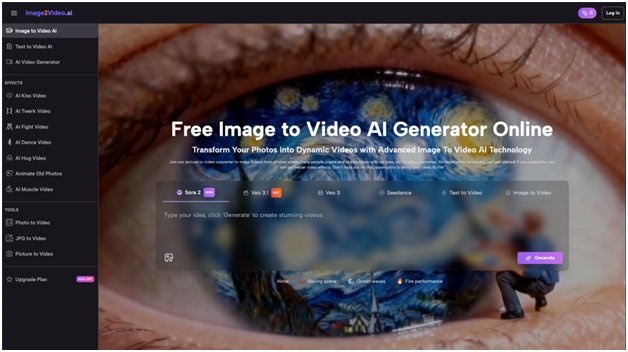
Many newcomers stare at the Image to Video AI interface and feel lost. The promise of turning a single photo into a dynamic clip sounds amazing but where do you begin? Overly technical menus, unfamiliar jargon, and a fear of wasted time combine to create a steep mental barrier. In my early experiments, I remember clicking randomly on settings, only to end up with choppy transitions and overly long renders. You don’t need to repeat those missteps.
This section breaks down the main pain points and shows why a simple workflow is the key to success.
Common Pain Points
- Jargon overload: terms like “frame interpolation” and “neural style transfer” can intimidate.
- Unclear UI: too many sliders and options without guidance.
- Unrealistic expectations: expecting studio-quality output on the first try.
- Fear of time loss: long processing times seem like a trap.
- Lack of prompt strategy: not knowing how to guide the AI effectively.
Step-by-Step Guide to Your First Image to Video AI Project
Getting started with image to video doesn’t require a degree in computer science. In four clear steps, you’ll have your first clip ready in under ten minutes with no prior experience needed.
Step 1: Upload Your Image
- Choose a clear JPEG or PNG and think of simple compositions.
- Click “Upload” and wait a few seconds for the preview.
- Avoid images with cluttered backgrounds; clean subjects yield the best animations.
Step 2: Crafting Your Prompt
Your text description is the AI’s instruction manual. A well-phrased prompt might be: “Animate this product photo with a slow zoom-in and gentle fade to white.” I’ve found that short, specific sentences work better than long paragraphs. Try to mention style (e.g., smooth, cinematic), motion (e.g., pan, zoom), and mood (e.g., warm, energetic).
Step 3: Let AI Work Its Magic
Once you hit “Generate,” our Image to Video AI platform displays a “Processing” status. This typically takes around five minutes. During this time, the system analyzes your photo and prompt, then applies intelligent transitions and effects. Feel free to grab a coffee or plan your next uploads.
Step 4: Review and Share
When the status reads “Completed,” preview your video in the dashboard. Look for smooth transitions, accurate motion, and correct color tones. If something feels off, tweak your prompt or swap out the image. Otherwise, download the MP4 and share it across social media, embed it in presentations, or send it to clients.
Key Mistakes and How to Overcome Them
Avoiding common pitfalls will save you frustration and time. Here are the three biggest mistakes I made when first exploring photo to video conversion—and how you can dodge them.
Mistake 1: Skipping the Prompt Planning
Treat the prompt like a storyboard. When I rushed this step, results were generic. Instead, list your desired movements and style cues before typing. A quick checklist might include:
- Subject focus (centered, offset)
- Camera movement (zoom, pan, rotate)
- Transition type (fade, cut, wipe)
- Color mood (warm, cool, high-contrast)
Mistake 2: Ignoring Format Requirements
Uploading an unsupported file leads to errors and lost time. Always stick to JPEG or PNG inputs. Pay attention to image resolution: a crisp 1080×1080 works well for square social posts, while 1920×1080 is ideal for widescreen videos. This simple step ensures the Image to Video AI engine processes your file smoothly.
Mistake 3: Expecting Perfection Instantly
Early outputs rarely match your final vision. In one project, I wanted a cinematic reveal, but got a jumpy clip instead. The solution? Iterate. Adjust your prompt, swap out background colors, tweak effects, and reprocess. Two or three quick rounds often lead to polished results.
Common Misconceptions
- “The AI decides everything.” In reality, you guide the outcome through your instructions.
- “High-end hardware is required.” This tool is entirely web-based—no GPU needed.
- “Only experts can use it.” With a clear workflow, anyone can create engaging videos.
Real-World Applications and Benefits
Adopting Image to Video AI offers cost-effective, rapid content creation across many use cases.
For Marketers & Businesses
- Convert product images into dynamic ads.
- Produce high-volume photo to video campaigns in minutes.
- Test multiple creative concepts without hiring a videographer.
For Content Creators & YouTubers
- Turn travel snaps into vlog intros.
- Animate thumbnails to boost click-through rates.
- Create storytelling montages from image sequences.
For Educators & Trainers
- Bring diagrams to life for online lessons.
- Transform static infographics into animated explanations.
- Engage students with moving visuals, not just slides.
For Social Media Managers
- Keep feeds fresh with quick, eye-catching clips.
- Optimize videos for Instagram Stories, TikTok, and Facebook.
- Maintain a steady content schedule without outsourcing.
For Personal Projects & Memories
- Make anniversary videos from family albums.
- Craft ‘picture video with music’ montages for gifts.
- Share heartwarming clips of travel or milestones.
For E-commerce & Product Showcases
- Create interactive 360° product views.
- Build unboxing sequences from image sets.
- Present new arrivals with animated transitions.
Actionable Tips for Maximizing Efficiency
Whether you’re a freelancer or a solopreneur, these quick wins will boost your productivity with Image to Video AI.
Checklist for Speedy Creation
- Pre-select 5–10 photos before logging in.
- Draft prompt templates (e.g., “slow zoom into center”).
- Use default render quality for drafts and switch to high quality for final exports.
- Batch-generate videos by queueing multiple projects.
- Keep a spreadsheet of prompts and results for future reference.
Quick Prompt Hacks
- Add style references (e.g., “inspired by documentary films”).
- Mention pacing (e.g., “2 seconds per movement”).
- Specify color filters (e.g., “warm sunset tones”).
Efficiency Workflow
- Morning: Plan your week’s video needs.
- Midday: Batch-upload and write prompts.
- Afternoon: Review completions and schedule posts.
First-Person Insight: My Early Wins
When I first tried Image to Video AI, I was skeptical. My company needed simple demos, and hiring videographers wasn’t an option. After a few tries, I realized that focusing on one element at a time say, just the zoom led to quick, shareable clips. Within a week, we had a mini library of animated product showcases that outperformed static ads by 30% in engagement.
Conclusion: Embrace Simple Workflows for Big Gains
Image to Video AI doesn’t have to be intimidating. By understanding common pitfalls, following a clear four-step process, and leveraging real-world examples, you’ll transform photo to video tasks into a streamlined routine. Remember, perfection comes through iteration, not instant magic. Start small, plan your prompts, and watch how dynamic content creation becomes both cost-effective and time-saving. With these strategies, you’ll be ready to harness the full potential of photo to video no technical degree required.

ADVERTISEMENT

ADVERTISEMENT
ADVERTISEMENT








 English (US) ·