

 1 hour ago
6
1 hour ago
6
ARTICLE AD BOX
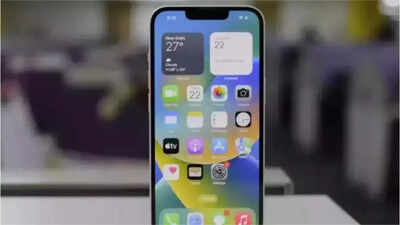
Your iPhone or iPad lets you capture a video of your screen for sharing gameplay, creating app tutorials, reporting bugs, and providing instructions for accomplishing tasks. Many people rely on third-party applications to capture screen recordings, but iPhones have an inherent feature that lets you record your screen directly.
Here’s how to enable screen recording and capture your iPhone screen with audio without installing any additional software.Here’s how to record your iPhone screen with audio
By default, recordings are saved in the Photos app, though users may see other save options depending on their device settings.After the countdown ends, the recording begins. A red indicator with a timer will appear at the top of the screen.When you’re done, tap the red indicator and select “Stop”. Your video will be saved automatically to the Photos app.Users can also pause the recorded video later and take screenshots if they missed capturing a specific moment during the recording.









 English (US) ·